
Library Instructions
Loading PMC Configuration into iPhysics
-
Unzip the iPhysics library for Planar Motor Inc.
-
Install the motion plug-in:
-
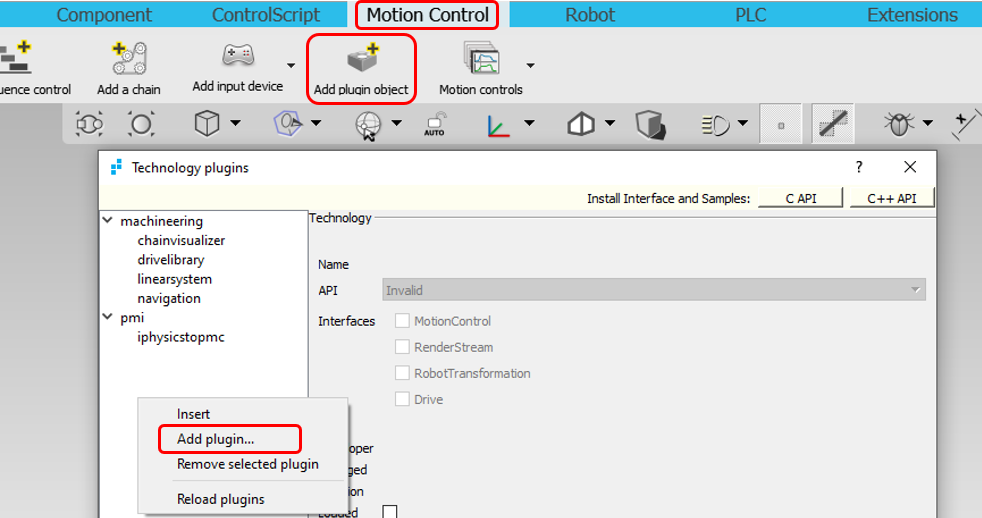
Go to Motion Control tab and click on Add plugin object
-
The Technology plugins window will appear
-
Right-click in the left column and select Add plugin…
-
Browse to
iPhysicstoPMC.dlland upload it -
Rebuild

-
-
Save the file
PMCConfig.xmlin the same location as the unzipped “lib” folder and the scriptImportConfig.js
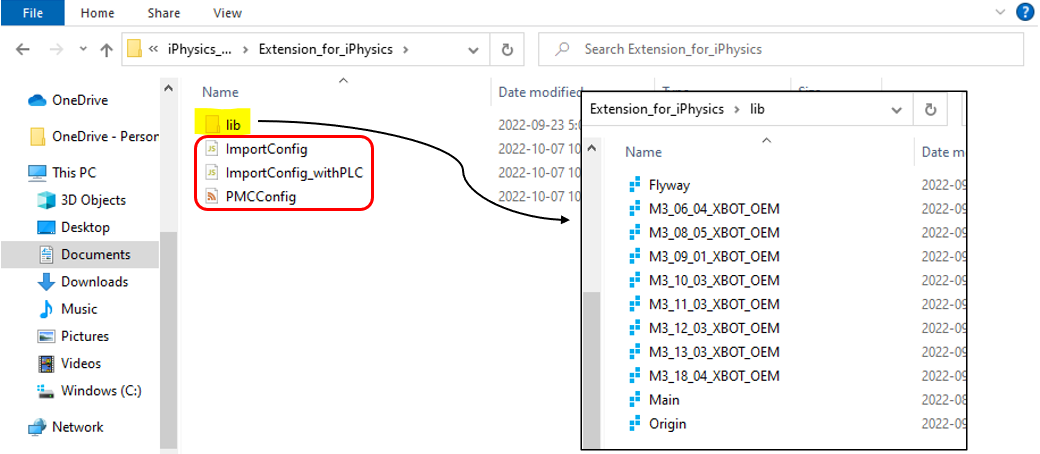
PMCConfig.xml is obtained through the Planar Motor Tool:
-
Go to Configuration and click on Open Configurator
-
Once desired configuration in selected, click on Save To PC
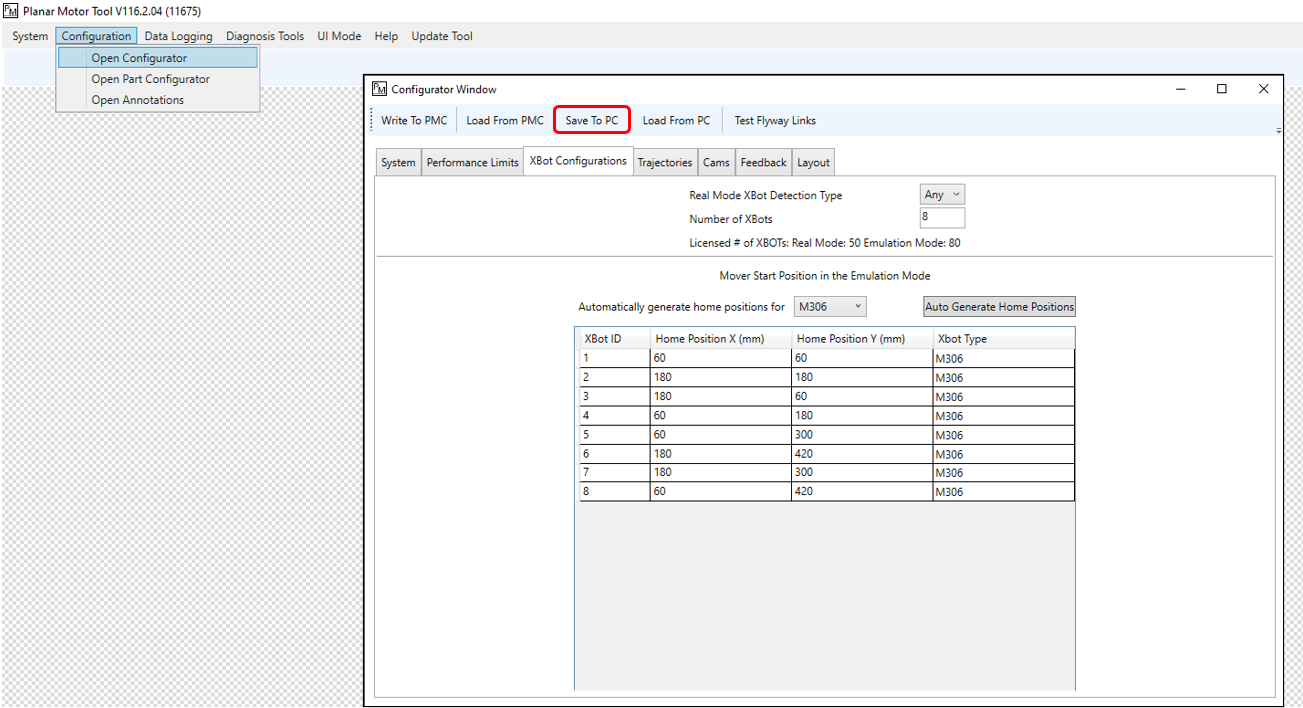
Do not rename the file. Regenerate/replace the configuration file each time the layout is changed or a different PMC is used.
-
Run ImportConfig under the Extensions tab in iPhysics
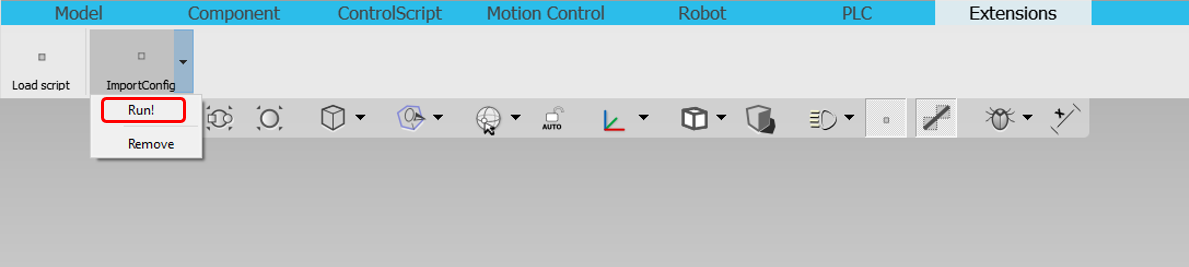
If ImportConfig is not already available:
-
Click on Load script
-
Browse and select
ImportConfig.js
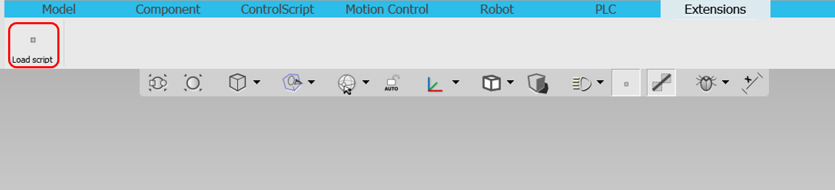
-
If the extension did not appear after the above step, close and restart iPhysics
Running the extension in Step 4 will create a new iPhysics document. If an already opened iPhysics simulation needs to be used, please refer to Importing Configuration in an Already Opened Simulation.
Modifying User Origin in iPhysics
There are 2 options to change the user origin in iPhysics.
Automatically through the ImportConfig extension
This will create a new document and current changes will not be transferred, unless Importing Configuration in an Already Opened Simulation is executed first.
-
Open the Configurator in the Planar Motor Tool
-
Save the layout to PC (replace the previous
PMCConfig.xmlfile) -
Run ImportConfig in iPhysics from the Extensions tab
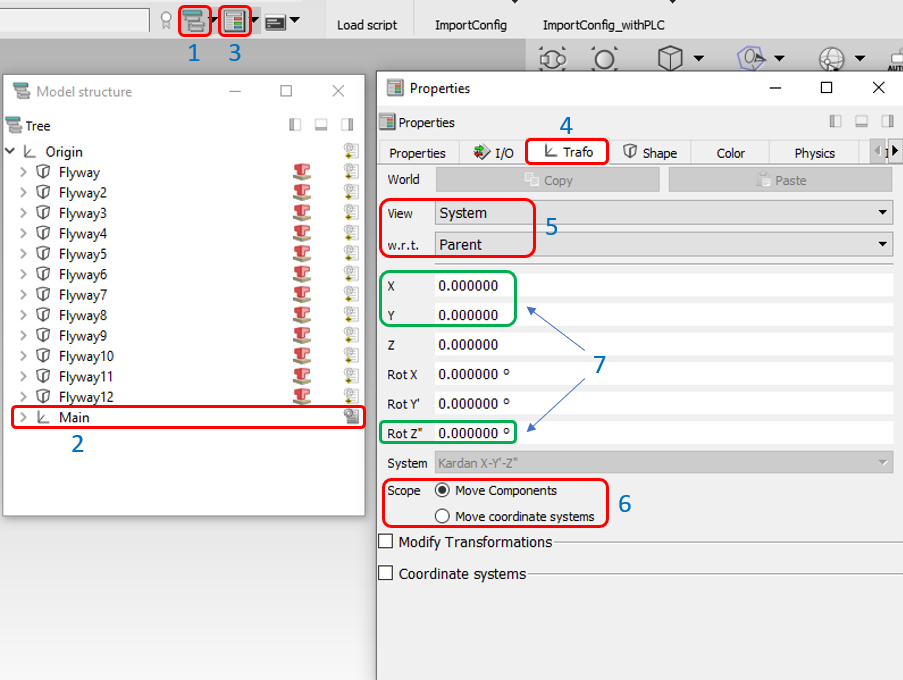
Manually in the properties window in iPhysics
The current document will continue to be used.
-
Open the Model structure window
-
Select Main
-
Open the Properties window
-
Navigate to the Trafo tab
-
Make sure the View is System w.r.t. Parent
-
Select the scope to be Move Components
-
Enter the same values (in meters and degrees) as in the Configurator
Modifying the Extension
Importing Configuration in an Already Opened Simulation
Running the extensions will create a new document every time they are run. To be able to load the PMC configuration in an already opened iPhysics simulation,
-
Open the file
ImportConfig.js -
Comment the following lines:


-
The configuration will load in the top-most level of the model tree (its parent is the world trafo). To modify that, change the parent path:

-
Save the file
If there is already an instance of the configuration which was loaded in the simulation beforehand, delete if first, and then run the extension again.
Troubleshooting
Go through the steps in order until one of them solves the issue. If none of them worked, restart iPhysics and run ImportConfig again.
XBots are not synchronized with PMT or physical system
-
Make sure that the simulation is actually running
-
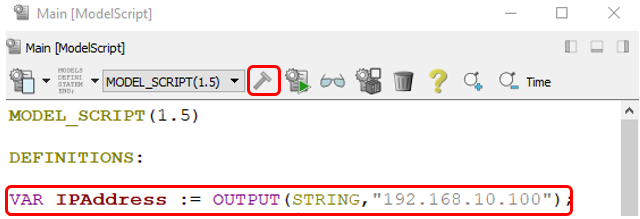
Verify that the IP Address in the script of Main matches that of the PMC
-
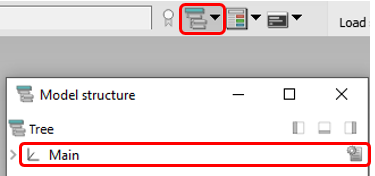
Open the script by double-clicking on from the Model structure
-
Check the IP Address, change its value if needed and click on Compile
-
Close the script, rebuild

-
The status of the connection between iPhysics and PMC can be known by looking at the isConnected property of Main. An active connection is indicated by 1.
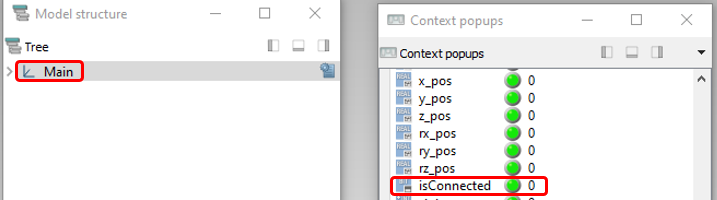
Verify that when rebuilding isConnected changes to 0, and clicking play
-
Unload and reload the motion plug-in
-
Rebuild
-
Go to Add plugin object from the Motion Control tab. Click on
iphysicstopmcand unload it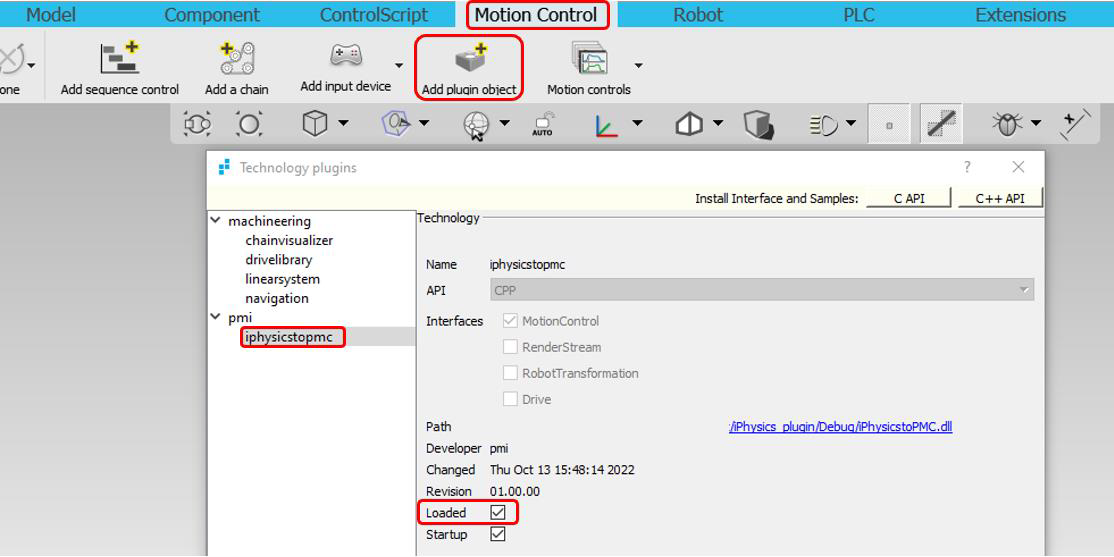
-
Right-click in the left column of the Technology plugins window and select Reload plugins
-
Rebuild
-