
See also: Power Sector Configuration, Flyway Offset Configuration
This section will show you how to configure the PMC to the layout shown below.
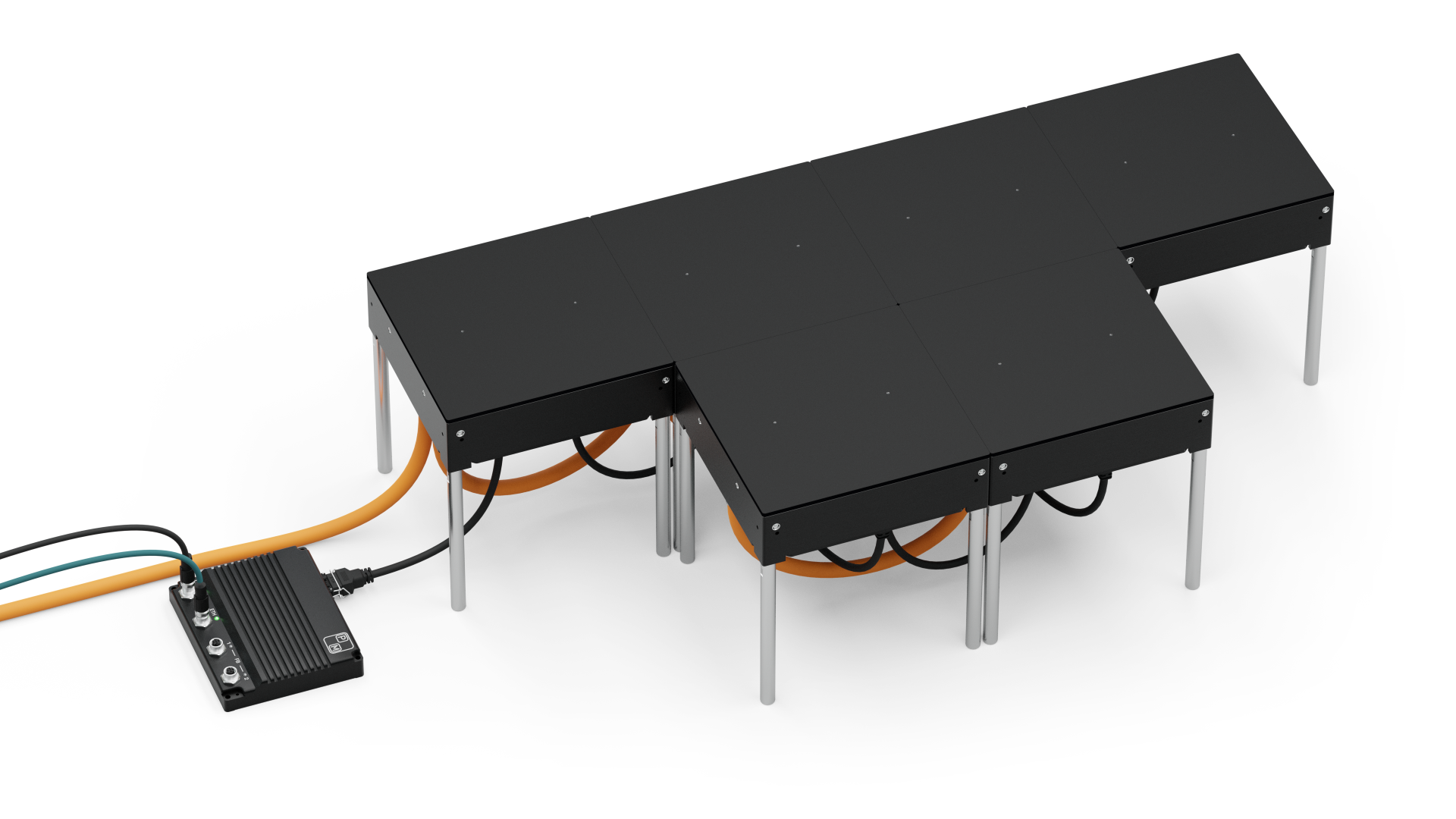
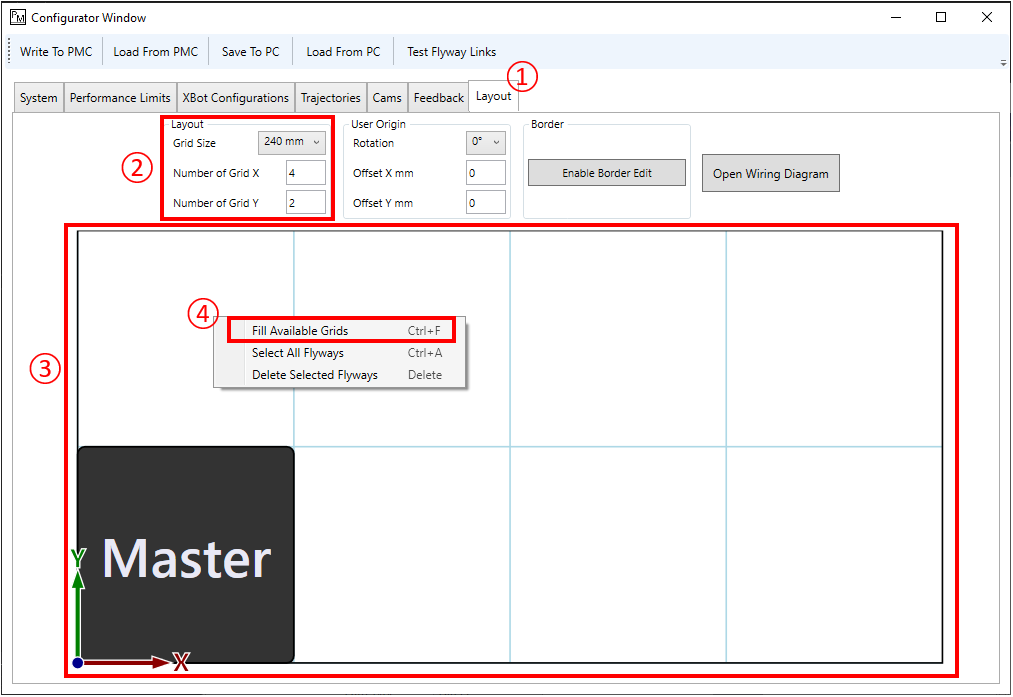
After opening the Configurator:
① Select Layout.
② Enter the overall length of the system in the X direction, e.g. 4 Flyways long. Also enter the length of the system in the Y direction.
③ The grid of squares is used to represent Flyways. A black square means a Flyway is installed in that location; an empty white square means there is not a Flyway installed in that location.
④ Right click on any of the squares, choose "Fill Available Grids" or use the shortcut Ctrl + F.
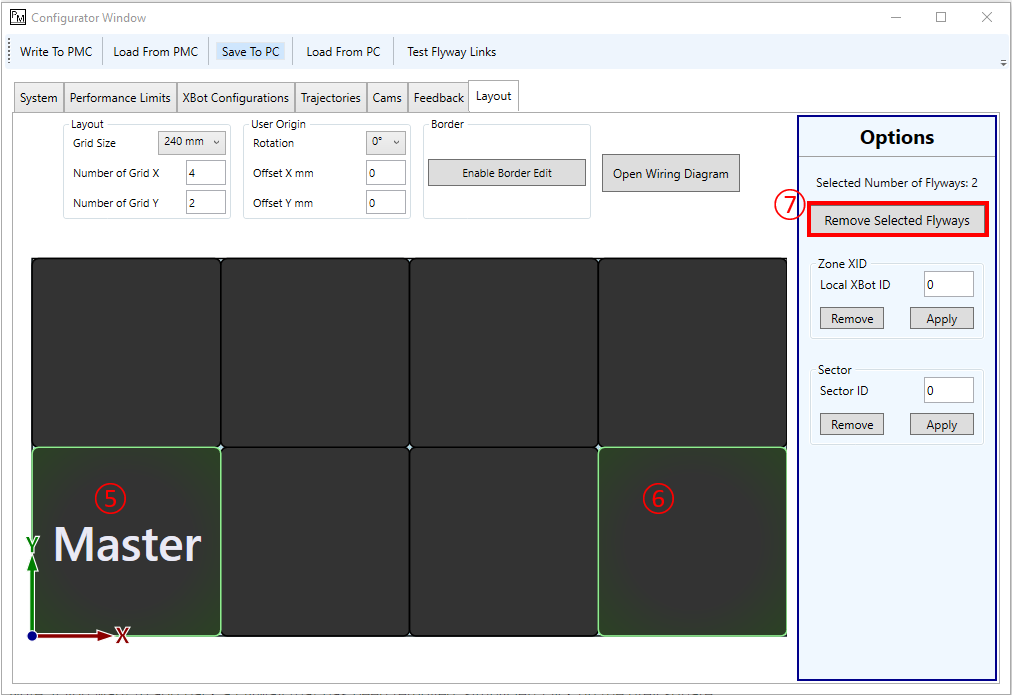
⑤ Click on the bottom left Flyway
⑥ Click on the bottom right Flyway
⑦ In the Options window, click on "Remove Selected Flyways". Alternatively, the Delete key can also be used.
Note: if you want to add back a Flyway that has been removed, simply left click on the white square.
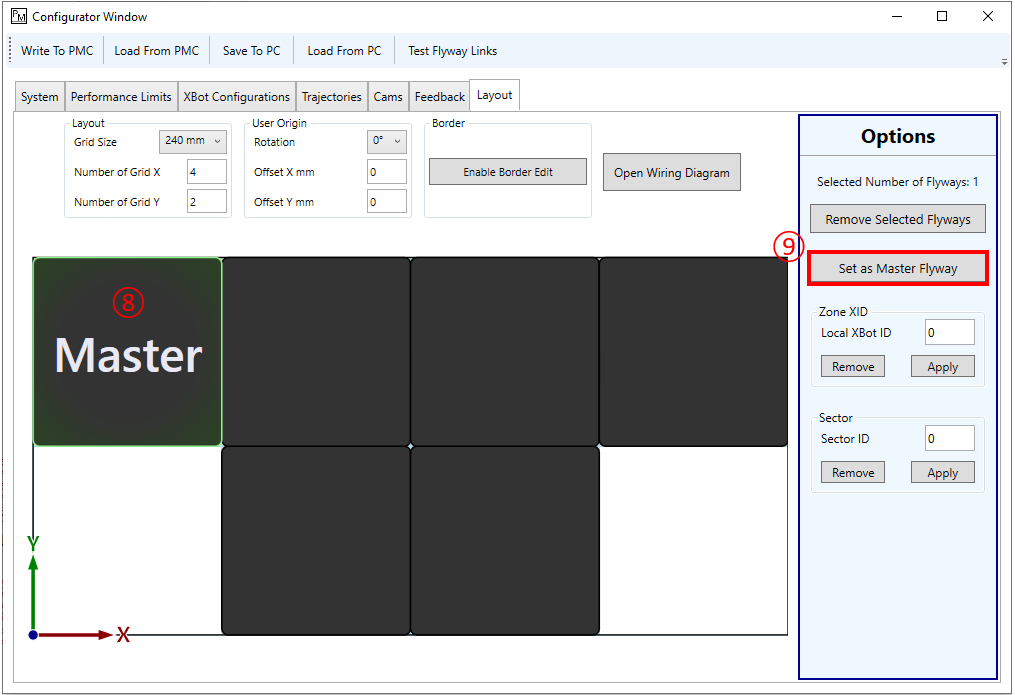
⑧ Click on the Flyway that is directly connected to the PMC, in this example, it is the top left Flyway
⑨ In the Options window, select "Set as Master Flyway"
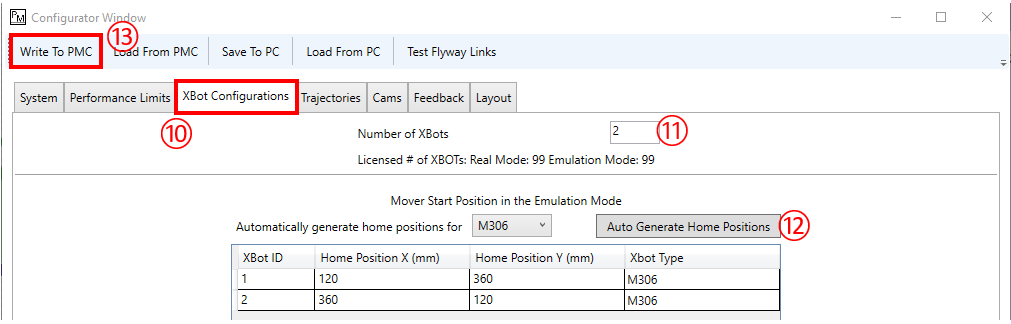
⑩ Click on "XBot Configurations" tab
⑪ Change "Number of XBots" to the amount of XBots you plan to use for this layout
⑫ Click on "Auto Generate Home Positions" or enter desired starting position manually (if operating in emulation mode)
⑬ After finalizing all settings, click "Write to PMC"
Note: if using a real system, a power cycle of the Flyways and PMC is required to apply the new layout.