
Through the system setting tab, you can change PMC IP Address, toggle emulation mode, change fieldbus setting, switch XID Mode and update PMC.
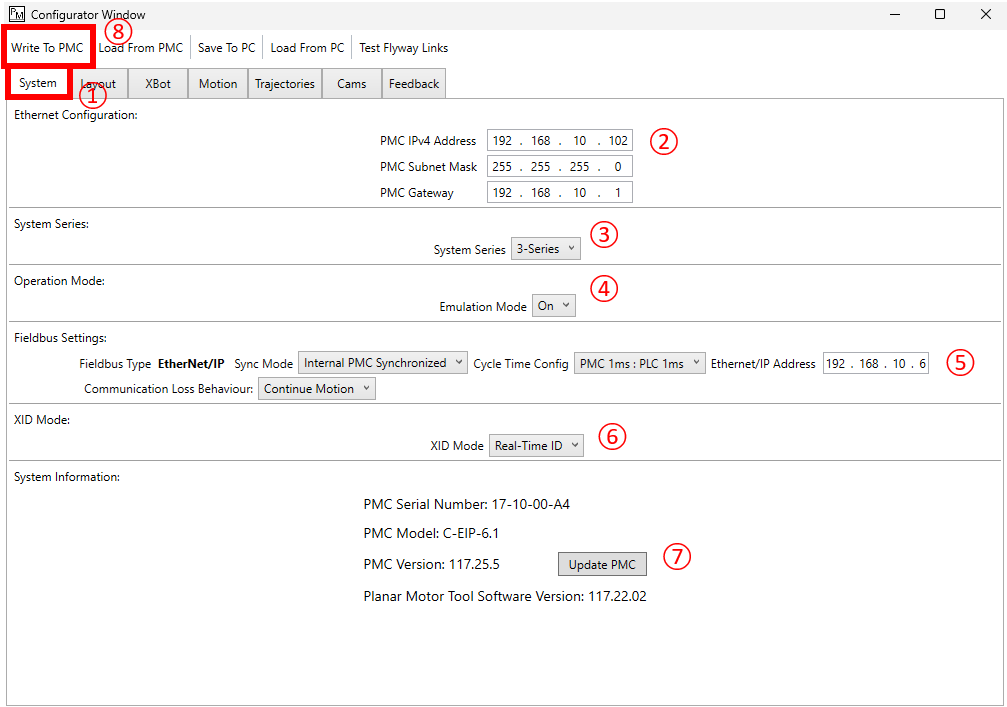
① Click on "System" tab in the Configurator Window
② Ethernet Configuration: Change PMC's IP Address to any number. After changing IP, save the setting by following step ⑧, then power cycle the PMC to use the new IP address
③ System Series: Select between 3-Series and 4-Series
④ Operation Mode: There are two modes:
-
Emulation Mode On: You control a emulated system, and you can set any layout and number of XBots allowed by the license
-
Emulation Mode Off: You control a real system, and your layout MUST match the physical system, and the number of XBots configured in XBots settings must be equal or more than the actual number of XBots on the real system
⑤ Fieldbus Setting: If the PMC contains a fieldbus module, its settings can be changed here
-
Sync Mode:
-
Cycle Time Config: Only necessary to configure when
External PLC Synchronizedis selected to align the PMC and PLC cycle times -
Communication Loss Behaviour: Defines the behaviour of the XBots if the connection to the fieldbus is interrupted/lost
⑥ XID Mode: There are three modes, read XID Configuration for more details
⑦ Update PMC: Follow Updating Planar Motor Controller for step by step instruction
⑧ Once you finish changing the settings, click "Write To PMC" to save the setting to PMC